
iOS UIViewController のトランジションについて
UIViewController の下にスワイプして閉じる/上にスワイプして表示/全画面右スワイプで戻る 効果の完全解説
はじめに

以前からずっと気になっていたのですが、Facebook、Line、Spotifyなどのよく使われるアプリは、「Presentした UIViewController を下にスワイプして閉じる」「上にスワイプして UIViewController をフェードインさせる」「全画面でジェスチャーによる右スワイプで戻る」これらの効果をどのように実装しているのでしょうか。
これらの効果は標準では搭載されておらず、下にスワイプして閉じる機能も iOS 13 以降のシステムのカードスタイルで初めてサポートされました。
探索の道
キーワードの選び方が悪いのか、そもそも情報自体が少ないのか、この機能の実装方法がなかなか見つかりません。見つかる情報も曖昧で断片的なものばかりで、手探りで組み合わせるしかありません。
最初、自分で調べていたときに UIPresentationController というAPIを見つけ、他の資料は深く調べずに、この方法と UIPanGestureRecognizer を組み合わせて、かなり原始的な方法で下にスワイプして閉じる効果を実装しました。ずっとどこか変だと感じていて、もっと良い方法があるはずだと思っていました。
最近新しいプロジェクトに触れるまで、大先輩の記事 を拝読し、視野が広がって、より美しく柔軟な他のAPIの使い方があることに気づきました。
本記事は一方で自己記録として、もう一方で同じ悩みを持つ方の助けになればと思っています。
内容が少し多いので、面倒な方は直接下までスクロールしてサンプルを見るか、GitHubプロジェクトをダウンロードして確認してください!
iOS 13 カードスタイルの表示ページ
まず最新のシステム内蔵の効果について説明します。
iOS 13以降の UIViewController.present(_:animated:completion:) は、
デフォルトの modalPresentationStyle が UIModalPresentationAutomatic(シートスタイル)で表示されます。
以前のような全画面表示にしたい場合は、明示的に UIModalPresentationFullScreen を指定する必要があります。
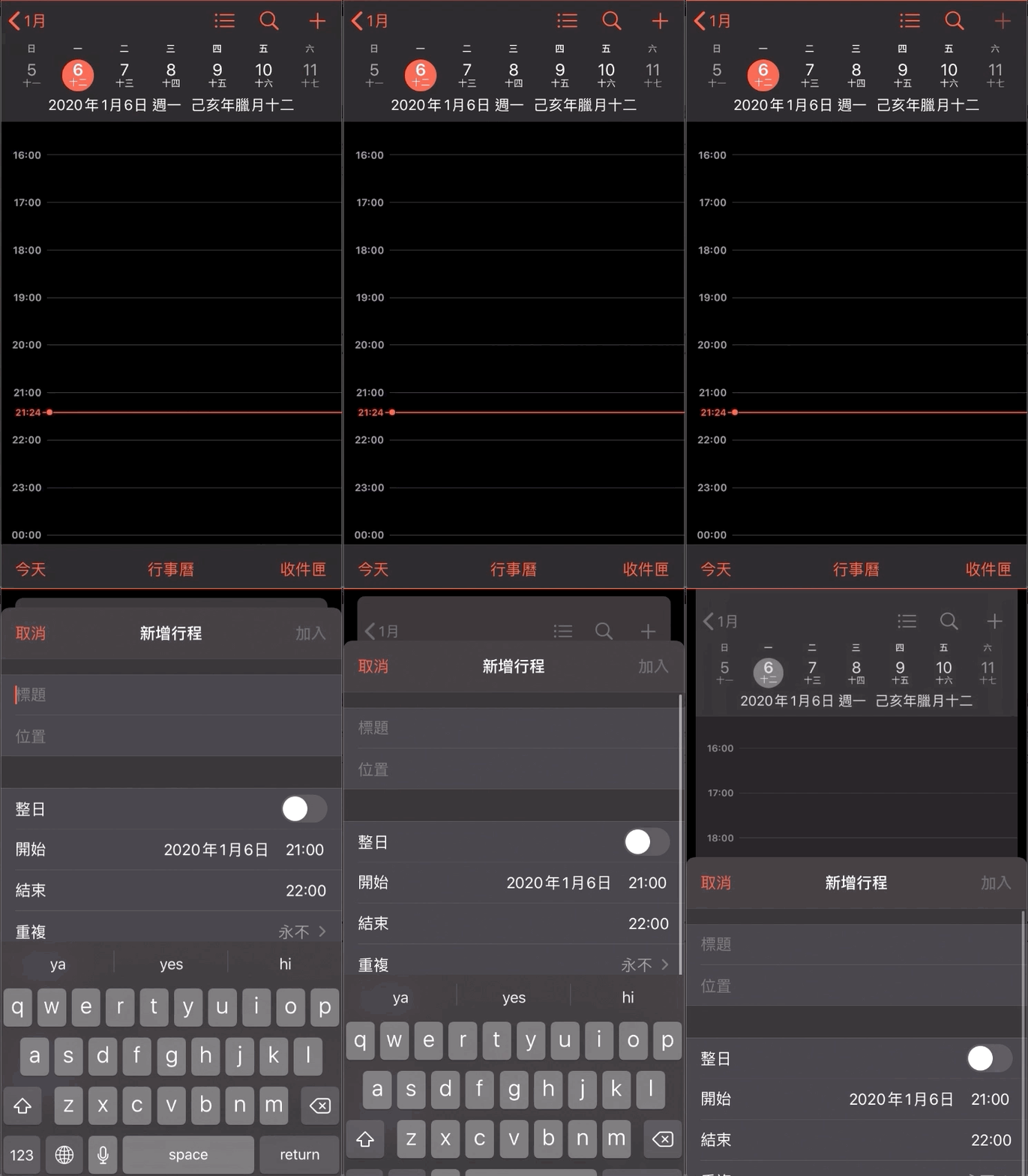
内蔵カレンダーの追加効果
下にスワイプして閉じる動作をキャンセルする方法?閉じる確認は?
より良いユーザー体験のためには、下にスワイプして閉じる操作をトリガーした際に入力データの有無を確認し、ある場合はユーザーに破棄して離脱するかどうかを確認する必要があります。
この部分はAppleがすでに用意してくれているので、UIAdaptivePresentationControllerDelegate のメソッドを実装するだけで済みます。
import UIKit

class DetailViewController: UIViewController {
    private var onEdit:Bool = true;
    override func viewDidLoad() {
        super.viewDidLoad()

        // デリゲートを設定
        self.presentationController?.delegate = self
        // UIViewControllerがNavigationControllerに埋め込まれている場合:
        // self.navigationController?.presentationController?.delegate = self

        // 下にスワイプして閉じる動作を無効化(1):
        self.isModalInPresentation = true;

    }

}

// デリゲート実装
extension DetailViewController: UIAdaptivePresentationControllerDelegate {
    // 下にスワイプして閉じる動作を無効化(2):
    func presentationControllerShouldDismiss(_ presentationController: UIPresentationController) -> Bool {
        return false;
    }

    // 下にスワイプして閉じるのをキャンセルした時に呼ばれる
    func presentationControllerDidAttemptToDismiss(_ presentationController: UIPresentationController) {
        if (onEdit) {
          let alert = UIAlertController(title: "データが保存されていません", message: nil, preferredStyle: .actionSheet)
          alert.addAction(UIAlertAction(title: "破棄して離脱", style: .default) { _ in
              self.dismiss(animated: true)
          })
          alert.addAction(UIAlertAction(title: "編集を続ける", style: .cancel, handler: nil))
          self.present(alert, animated: true)
        } else {
          self.dismiss(animated: true, completion: nil)
        }
    }
}
下にスワイプして閉じる動作を無効化するには、UIViewController の変数 isModalInPresentation を false に設定するか、UIAdaptivePresentationControllerDelegate の presentationControllerShouldDismiss を実装して true を返す、どちらかの方法を選べます。
UIAdaptivePresentationControllerDelegate presentationControllerDidAttemptToDismiss このメソッドは 下にスワイプして閉じる操作がキャンセルされた時 のみ呼び出されます。
ちなみに…
カードスタイルの表示ページはシステム上「Sheet」と呼ばれ、動作は「FullScreen」と異なります。
今日の
RootViewControllerはHomeViewControllerであると仮定する
カードスタイル表示時(UIModalPresentationAutomatic)では:
HomeViewControllerがDetailViewControllerをPresentする時…
HomeViewControllerのviewWillDisappear/viewDidDisappearは一切呼ばれません。
DetailViewControllerがDismissされるとき…
HomeViewControllerのviewWillAppear/viewDidAppearは一切呼ばれません。
⚠️ XCODE 11以降のバージョンでビルドしたiOS 13以上のアプリは、デフォルトでPresent時にカードスタイル(UIModalPresentationAutomatic)を使用します
もし以前に viewWillAppear/viewWillDisappear/viewDidAppear/viewDidDisappear にロジックを置いていた場合は、よく確認して注意してください! ⚠️
システム内蔵のものを見たところで、本記事の本題に入りましょう!これらの効果をどうやって自作するのか?
どこでトランジションアニメーションを実装できる?
まずはどこでウィンドウ切り替えのトランジションアニメーションができるか整理します。
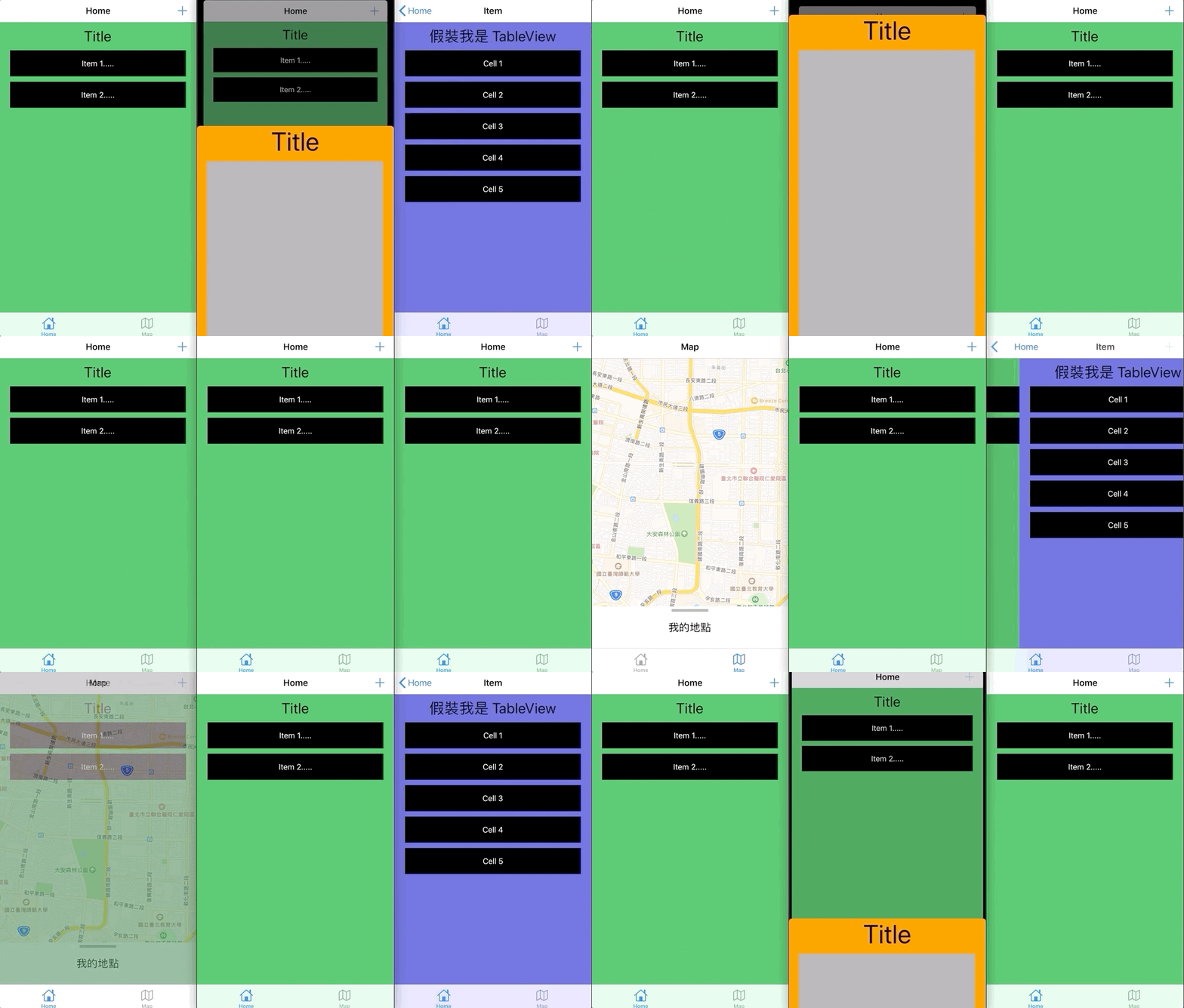
UITabBarController/UIViewController/UINavigationController
UITabBarController の切り替え時
UITabBarController に delegate を設定し、animationControllerForTransitionFrom メソッドを実装することで、UITabBarController の切り替え時にカスタムのトランジション効果を適用できます。
システムのデフォルトはアニメーションなしで、上の画像はフェードイン・フェードアウトの切り替え効果を示しています。
import UIKit

class MainTabBarViewController: UITabBarController {

    override func viewDidLoad() {
        super.viewDidLoad()
        self.delegate = self

    }

}

extension MainTabBarViewController: UITabBarControllerDelegate {
    func tabBarController(_ tabBarController: UITabBarController, animationControllerForTransitionFrom fromVC: UIViewController, to toVC: UIViewController) -> UIViewControllerAnimatedTransitioning? {
        // UIViewControllerAnimatedTransitioning を返す
    }
}
UIViewController Present/Dismiss 時
当然ですが、Present/Dismiss の UIViewController では適用するアニメーション効果を指定できます。そうでなければこの記事は存在しませんねXD;ただし、単純に Present アニメーションだけで手勢制御をしない場合は、UIPresentationController を使うと便利で簡単です(詳細は記事末の参考資料をご覧ください)。
システムのデフォルトは上にスワイプで表示、下にスワイプで閉じる動作です。カスタマイズする場合は、フェードイン、角丸、表示位置の調整などの効果を追加できます。
import UIKit

class HomeAddViewController: UIViewController {

    override func viewDidLoad() {
        super.viewDidLoad()

        self.modalPresentationStyle = .custom
        self.transitioningDelegate = self
    }

}

extension HomeAddViewController: UIViewControllerTransitioningDelegate {

    func animationController(forPresented presented: UIViewController, presenting: UIViewController, source: UIViewController) -> UIViewControllerAnimatedTransitioning? {
        // nilを返すとデフォルトのアニメーションを使用
        return //UIViewControllerAnimatedTransitioning Present時に適用するアニメーション
    }

    func animationController(forDismissed dismissed: UIViewController) -> UIViewControllerAnimatedTransitioning? {
        // nilを返すとデフォルトのアニメーションを使用
        return //UIViewControllerAnimatedTransitioning Dismiss時に適用するアニメーション
    }
}
任意の
UIViewControllerはtransitioningDelegateを実装してPresent/Dismissアニメーションを通知できます;UITabBarViewController、UINavigationController、UITableViewControllerなども対応可能
UINavigationController の Push/Pop 時
UINavigationController はアニメーションを変更する必要がほとんどないです。なぜなら、システム標準の左スワイプで表示、右スワイプで戻るアニメーションが最良の効果だからです。この部分をカスタマイズする場合は、シームレスな UIViewController の左右切り替え効果を実現するためかもしれません。
全画面でのジェスチャーによる戻る操作を実現するために、カスタムのPOPアニメーションと連携させる必要があるため、自分で戻るアニメーションを実装する必要があります。
import UIKit

class HomeNavigationController: UINavigationController {

    override func viewDidLoad() {
        super.viewDidLoad()

        self.delegate = self
    }

}

extension HomeNavigationController: UINavigationControllerDelegate {
    func navigationController(_ navigationController: UINavigationController, animationControllerFor operation: UINavigationController.Operation, from fromVC: UIViewController, to toVC: UIViewController) -> UIViewControllerAnimatedTransitioning? {

        if operation == .pop {
            return // UIViewControllerAnimatedTransitioning ポップ時に適用するアニメーション
        } else if operation == .push {
            return // UIViewControllerAnimatedTransitioning プッシュ時に適用するアニメーション
        }

        // nil を返すとデフォルトのアニメーションが適用される
        return nil
    }
}
インタラクティブとノンインタラクティブアニメーション?
アニメーション実装やジェスチャー制御について説明する前に、まずインタラクティブ(交互)とノンインタラクティブ(非交互)とは何かを説明します。
インタラクティブアニメーション: UIPanGestureRecognizer のようなジェスチャーでトリガーされるアニメーション
非インタラクティブアニメーション: システムが呼び出すアニメーション、例えば self.present()
アニメーション効果はどう実装する?
どこで実装できるか説明したので、次にアニメーション効果の作り方を見ていきましょう。
UIViewControllerAnimatedTransitioning という Protocol を実装し、その中でビューに対してアニメーションを行う必要があります。
一般的な遷移アニメーション: UIView.animate
直接 UIView.animate を使ってアニメーション処理を行う場合、UIViewControllerAnimatedTransitioning では transitionDuration でアニメーションの長さを指定し、animateTransition でアニメーション内容を実装する必要があります。
import UIKit

class SlideFromLeftToRightTransition: NSObject, UIViewControllerAnimatedTransitioning {

    func transitionDuration(using transitionContext: UIViewControllerContextTransitioning?) -> TimeInterval {
        return 0.4
    }

    func animateTransition(using transitionContext: UIViewControllerContextTransitioning) {

        // 使用可能なパラメータ:
        // 表示する対象の UIViewController の View 内容を取得:
        let toView = transitionContext.view(forKey: .to)
        // 表示する対象の UIViewController を取得:
        let toViewController = transitionContext.viewController(forKey: .to)
        // 表示する対象の UIViewController の View の初期フレーム情報を取得:
        let toInitalFrame = transitionContext.initialFrame(for: toViewController!)
        // 表示する対象の UIViewController の View の最終フレーム情報を取得:
        let toFinalFrame = transitionContext.finalFrame(for: toViewController!)

        // 現在の UIViewController の View 内容を取得:
        let fromView = transitionContext.view(forKey: .from)
        // 現在の UIViewController を取得:
        let fromViewController = transitionContext.viewController(forKey: .from)
        // 現在の UIViewController の View の初期フレーム情報を取得:
        let fromInitalFrame = transitionContext.initialFrame(for: fromViewController!)
        // 現在の UIViewController の View の最終フレーム情報を取得: (閉じるアニメーション時に前の表示アニメーションの最終フレームを取得可能)
        let fromFinalFrame = transitionContext.finalFrame(for: fromViewController!)

        //toView.frame.origin.y = UIScreen.main.bounds.size.height

        UIView.animate(withDuration: transitionDuration(using: transitionContext), delay: 0, options: [.curveLinear], animations: {
            //toView.frame.origin.y = 0
        }) { (_) in
            if (!transitionContext.transitionWasCancelled) {
                // アニメーションが中断されなかった
            }

            // システムにアニメーション完了を通知
            transitionContext.completeTransition(!transitionContext.transitionWasCancelled)
        }

    }

}
To と From:
もし今日
HomeViewControllerがDetailViewControllerをPresent/Pushする場合、
From = HomeViewController / To = DetailViewController
DetailViewControllerがDismiss/Popする時、
From = DetailViewController / To = HomeViewController
⚠️⚠️⚠️⚠️⚠️
公式には
transitionContext.viewControllerの .view ではなく、transitionContext.viewからビューを取得することが推奨されています。
しかしここで問題があります。Present/Dismiss アニメーションを行う際に
modalPresentationStyle = .customの場合;
Present 時に
transitionContext.view(forKey: .from)を使うと nil になります、
Dismiss 時に
transitionContext.view(forKey: .to)を使うと nil になることがある;
やはり viewController.view から値を取得して使用する必要がある。
⚠️⚠️⚠️⚠️⚠️
transitionContext.completeTransition(!transitionContext.transitionWasCancelled)アニメーション完了時に必ず呼び出す必要があります。そうしないと画面がフリーズします;
しかし
UIView.animateは実行するアニメーションがない場合、completionが呼ばれないため、前述のメソッドが呼ばれません。そのため、必ずアニメーションが実行されるようにしてください(例:yを100から0へ移動)。
ℹ️ℹ️ℹ️ℹ️ℹ️
アニメーションに関わる
ToView/FromViewが複雑だったり、アニメーション中に問題が発生する場合は、snapshotView(afterScreenUpdates:)を使ってスクリーンショットを作成し、それをアニメーションに利用できます。まずスクリーンショットを作成し、transitionContext.containerView.addSubview(snapShotView)でコンテナに追加します。その後、元のToView/FromViewを非表示にします(isHidden = true)。アニメーション終了時にsnapShotView.removeFromSuperview()を呼び出し、元のToView/FromViewを再表示します(isHidden = false)。
中断および再開可能なトランジションアニメーション: UIViewPropertyAnimator
また、iOS ≥ 10 の新しいアニメーションクラスを使ってアニメーションを実装することもできます。
個人の好みやアニメーションの細かさによって選択してください。
公式の推奨はインタラクティブな場合は UIViewPropertyAnimator を使うことですが、インタラクティブ・非インタラクティブ(手勢制御問わず)ともに通常は UIView.animate で十分です。
UIViewPropertyAnimator のトランジションアニメーションは中断して続行することが可能ですが、実際にどこで使うかは不明です。興味がある方はこちらの記事を参考にしてください。
import UIKit

class FadeInFadeOutTransition: NSObject, UIViewControllerAnimatedTransitioning {

    private var animatorForCurrentTransition: UIViewImplicitlyAnimating?

    func interruptibleAnimator(using transitionContext: UIViewControllerContextTransitioning) -> UIViewImplicitlyAnimating {

        // 現在の遷移アニメーションがある場合はそれを返す
        if let animatorForCurrentTransition = animatorForCurrentTransition {
            return animatorForCurrentTransition
        }

        // パラメータは前述と同じ

        // fromView.frame.origin.y = 100

        let animator = UIViewPropertyAnimator(duration: transitionDuration(using: transitionContext), curve: .linear)

        animator.addAnimations {
            // fromView.frame.origin.y = 0
        }

        animator.addCompletion { (position) in
            transitionContext.completeTransition(!transitionContext.transitionWasCancelled)
        }

        // アニメーションを保持する
        self.animatorForCurrentTransition = animator
        return animator
    }

    func transitionDuration(using transitionContext: UIViewControllerContextTransitioning?) -> TimeInterval {
        return 0.4
    }

    func animateTransition(using transitionContext: UIViewControllerContextTransitioning) {
        // 非インタラクティブの場合はこちらを通るので、インタラクティブなアニメーションも実行する
        let animator = self.interruptibleAnimator(using: transitionContext)
        animator.startAnimation()
    }

    func animationEnded(_ transitionCompleted: Bool) {
        // アニメーション完了後にクリア
        self.animatorForCurrentTransition = nil
    }

}
インタラクティブな場合(後でコントロールについて詳しく説明します)は、
interruptibleAnimatorメソッドのアニメーションを使用します。インタラクティブでない場合は、引き続きanimateTransitionメソッドを使用します。
継続や中断が可能な特性のため、
interruptibleAnimatorは繰り返し呼び出される可能性があります。そのため、グローバル変数でアクセスして返す必要があります。
Murmur…
実は最初、すべて新しい UIViewPropertyAnimator に切り替えて、みんなにも新しい方法を勧めようと思っていました。しかし、全画面ジェスチャーでの Pop アニメーションを作成する際に、ジェスチャーを離してアニメーションが元に戻るときに、上部のナビゲーションバーのアイテムが一瞬フェードイン・フェードアウトしてチカチカするという奇妙な問題に遭遇しました…。原因がわからず、UIView.animate に戻したらこの問題は起きませんでした。もし何か見落としがあれば教えてください<( _ _ )>。
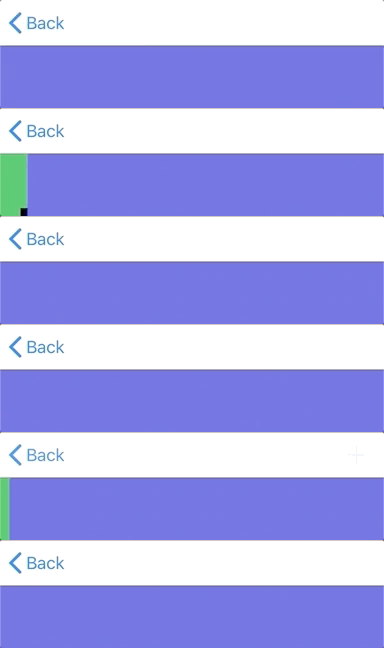
問題の画像; + ボタンは前のページのものです
だから念のため、やはり従来の方法を使いましょう!
実際には、異なるアニメーション効果ごとに個別のクラスを作成します。ファイルが多くなりすぎると感じた場合は、文末のまとめた方法を参考にしてください。または、同じ連続した(Present + Dismiss)アニメーションを一緒にまとめても構いません。
transitionCoordinator
また、より細かい制御が必要な場合、例えば ViewController 内の特定のコンポーネントを転場アニメーションに合わせて変更したい場合は、UIViewController の transitionCoordinator を使って連携できます。私はこの部分は使っていませんが、興味があればこちらの記事を参照してください。
アニメーションをどう制御する?
ここが前述した「インタラクティブ」、つまり実際にはジェスチャー制御の部分です。本記事で最も重要な章であり、ジェスチャー操作とトランジションアニメーションの連動機能を実装することで、下にスワイプして閉じる動作や全画面戻る機能を実現します。
コントローラ代理の設定:
前述の ViewController の代理アニメーション設計と同様に、インタラクティブ処理を行うクラスも代理を通じて ViewController に通知する必要があります。
UITabBarController: なし
UINavigationController (Push/Pop):
import UIKit

class HomeNavigationController: UINavigationController {

    override func viewDidLoad() {
        super.viewDidLoad()

        self.delegate = self
    }

}

extension HomeNavigationController: UINavigationControllerDelegate {
    func navigationController(_ navigationController: UINavigationController, animationControllerFor operation: UINavigationController.Operation, from fromVC: UIViewController, to toVC: UIViewController) -> UIViewControllerAnimatedTransitioning? {

        if operation == .pop {
            return // UIViewControllerAnimatedTransitioning ポップ時に適用するアニメーション
        } else if operation == .push {
            return // UIViewControllerAnimatedTransitioning プッシュ時に適用するアニメーション
        }
        // nil を返すとデフォルトのアニメーションが使われる
        return nil
    }

    // 交互的な遷移の代理メソッドを追加:
    func navigationController(_ navigationController: UINavigationController, interactionControllerFor animationController: UIViewControllerAnimatedTransitioning) -> UIViewControllerInteractiveTransitioning? {
        // ここではポップかプッシュか判別できないため、アニメーション自体で判断する
        if animationController is プッシュ時に適用するアニメーション {
            return // UIPercentDrivenInteractiveTransition プッシュアニメーションのインタラクション制御
        } else if animationController is ポップ時に適用するアニメーション {
            return // UIPercentDrivenInteractiveTransition ポップアニメーションのインタラクション制御
        }
        // nil を返すとインタラクション処理を行わない
        return nil
    }
}
UIViewController (Present/Dismiss):
import UIKit

class HomeAddViewController: UIViewController {

    override func viewDidLoad() {
        super.viewDidLoad()

        self.modalPresentationStyle = .custom
        self.transitioningDelegate = self
    }

}

extension HomeAddViewController: UIViewControllerTransitioningDelegate {

    func interactionControllerForDismissal(using animator: UIViewControllerAnimatedTransitioning) -> UIViewControllerInteractiveTransitioning? {
        // nilを返すとインタラクションなし
        return //UIPercentDrivenInteractiveTransition Dismiss時のインタラクション制御メソッド
    }

    func interactionControllerForPresentation(using animator: UIViewControllerAnimatedTransitioning) -> UIViewControllerInteractiveTransitioning? {
        // nilを返すとインタラクションなし
        return //UIPercentDrivenInteractiveTransition Present時のインタラクション制御メソッド
    }

    func animationController(forPresented presented: UIViewController, presenting: UIViewController, source: UIViewController) -> UIViewControllerAnimatedTransitioning? {
        // nilを返すとデフォルトアニメーションを使用
        return //UIViewControllerAnimatedTransitioning Present時に適用するアニメーション
    }

    func animationController(forDismissed dismissed: UIViewController) -> UIViewControllerAnimatedTransitioning? {
        // nilを返すとデフォルトアニメーションを使用
        return //UIViewControllerAnimatedTransitioning Dismiss時に適用するアニメーション
    }

}
⚠️⚠️⚠️⚠️⚠️
interactionControllerFor などのメソッドを実装している場合、アニメーションが非インタラクティブ(例:self.present でシステムが呼び出す遷移)でもこれらのメソッドが呼ばれます。制御すべきは内部の
wantsInteractiveStartパラメータです(後述)。
アニメーションインタラクション処理クラス UIPercentDrivenInteractiveTransition:
次に、コアとなる実装である UIPercentDrivenInteractiveTransition について説明します。
import UIKit

class PullToDismissInteractive: UIPercentDrivenInteractiveTransition {

    // 手勢によるインタラクティブ制御を追加するUIView
    private var interactiveView: UIView!
    // 現在のUIViewController
    private var presented: UIViewController!
    // どれだけドラッグしたら完了とみなすかの閾値
    private let thredhold: CGFloat = 0.4

    // それぞれのトランジション効果に応じて情報をカスタマイズ可能
    convenience init(_ presented: UIViewController, _ interactiveView: UIView) {
        self.init()
        self.interactiveView = interactiveView
        self.presented = presented
        setupPanGesture()

        // デフォルト値、現在は非インタラクティブアニメーションを通知
        wantsInteractiveStart = false
    }

    private func setupPanGesture() {
        let panGesture = UIPanGestureRecognizer(target: self, action: #selector(handlePan(_:)))
        panGesture.maximumNumberOfTouches = 1
        panGesture.delegate = self
        interactiveView.addGestureRecognizer(panGesture)
    }

    @objc func handlePan(_ sender: UIPanGestureRecognizer) {
        switch sender.state {
        case .began:
            // ジェスチャー位置をリセット
            sender.setTranslation(.zero, in: interactiveView)
            // システムに現在手勢によるインタラクティブアニメーション開始を通知
            wantsInteractiveStart = true

            // ジェスチャー開始時に実行するトランジション効果を呼び出す(即実行されずシステムが管理)
            // 対応するアニメーションがあれば UIViewControllerAnimatedTransitioning で処理される
            // animated は必ず true、そうでなければアニメーションなし

            // Dismiss:
            self.presented.dismiss(animated: true, completion: nil)
            // Present:
            //self.present(presenting,animated: true)
            // Push:
            //self.navigationController.push(presenting)
            // Pop:
            //self.navigationController.pop(animated: true)

        case .changed:
            // ジェスチャーの移動量からアニメーションの進捗率(0〜1)を計算
            // アニメーションの種類により計算方法は異なる
            let translation = sender.translation(in: interactiveView)
            guard translation.y >= 0 else {
                sender.setTranslation(.zero, in: interactiveView)
                return
            }
            let percentage = abs(translation.y / interactiveView.bounds.height)

            // UIViewControllerAnimatedTransitioning のアニメーション進捗を更新
            update(percentage)
        case .ended:
            // ジェスチャー終了時に進捗が閾値を超えたか判定
            wantsInteractiveStart = false
            if percentComplete >= thredhold {
              // 超えていればアニメーション完了を通知
              finish()
            } else {
              // 超えていなければアニメーションをキャンセルして元に戻す
              cancel()
            }
        case .cancelled, .failed:
          // キャンセルや失敗時の処理
          wantsInteractiveStart = false
          cancel()
        default:
          wantsInteractiveStart = false
          return
        }
    }
}

// UIViewController内にUIScrollView系コンポーネント(UITableView/UICollectionView/WKWebViewなど)がある場合のジェスチャー競合防止
// 内部のUIScrollViewが一番上までスクロールされている場合にのみインタラクティブトランジションのジェスチャーを有効にする
extension PullToDismissInteractive: UIGestureRecognizerDelegate {
    func gestureRecognizer(_ gestureRecognizer: UIGestureRecognizer, shouldRecognizeSimultaneouslyWith otherGestureRecognizer: UIGestureRecognizer) -> Bool {
        if let scrollView = otherGestureRecognizer.view as? UIScrollView {
            if scrollView.contentOffset.y <= 0 {
                return true
            } else {
                return false
            }
        }
        return true
    }

}
*sender.setTranslation(.zero, in:interactiveView) の理由に関する補足ポイントはこちら<
私たちは、異なるジェスチャー操作の効果に応じて、異なるクラスを実装する必要があります。同じ連続した(Present + Dismiss)の操作であれば、一つにまとめることも可能です。
⚠️⚠️⚠️⚠️⚠️
wantsInteractiveStartは適切な状態に設定する必要があります。インタラクティブアニメーション中にwantsInteractiveStart = falseに設定すると画面が固まる原因になります。
アプリを再起動しないと正常に戻りません。
⚠️⚠️⚠️⚠️⚠️
interactiveView は必ず isUserInteractionEnabled = true に設定してくださいね
もう少し設定を追加して確実にしましょう!
組み合わせ
ここで Delegate を設定し、Class を作成すれば、目的の機能が実現できます。
それでは、早速完成したサンプルを紹介します。
自作の下にスワイプして閉じるページ効果
自作の下に引くジェスチャーの利点は、市場に出ているすべての iOS バージョンをサポートでき、カバー率のパーセンテージや閉じるトリガー位置を制御でき、アニメーション効果をカスタマイズできる点です。
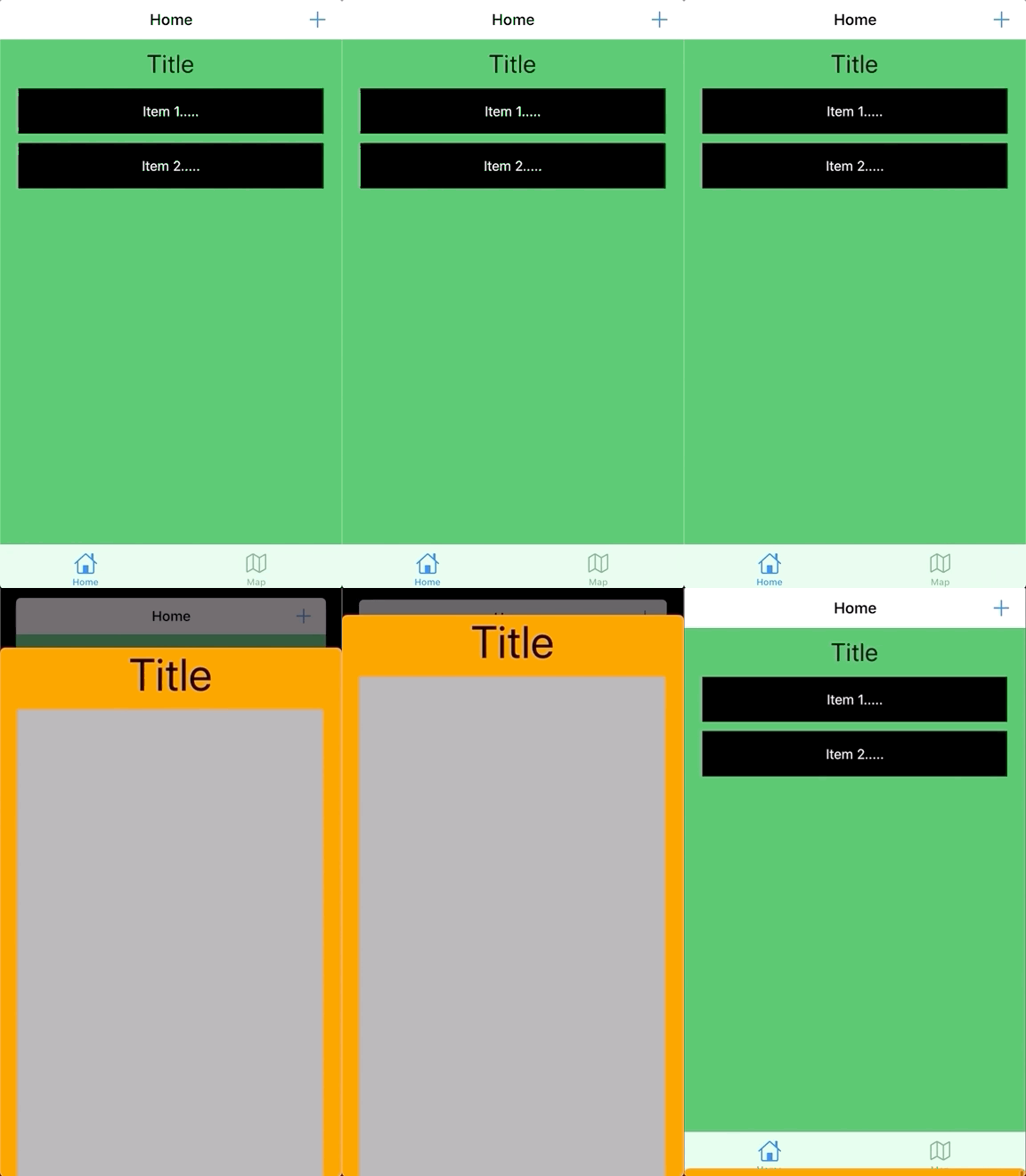
右上の + ボタンをタップしてページを表示する
これは HomeViewController が HomeAddViewController を Present し、HomeAddViewController が Dismiss する例です。
import UIKit

class HomeViewController: UIViewController {

    @IBAction func addButtonTapped(_ sender: Any) {
        guard let homeAddViewController = UIStoryboard(name: "Main", bundle: nil).instantiateViewController(identifier: "HomeAddViewController") as? HomeAddViewController else {
            return
        }

        //transitioningDelegate はターゲットのViewControllerか現在のViewControllerを指定可能
        homeAddViewController.transitioningDelegate = homeAddViewController
        homeAddViewController.modalPresentationStyle = .custom
        self.present(homeAddViewController, animated: true, completion: nil)
    }

}
import UIKit

class HomeAddViewController: UIViewController {

    private var pullToDismissInteractive:PullToDismissInteractive!

    override func viewDidLoad() {
        super.viewDidLoad()

        //遷移のインタラクション情報をバインド
        self.pullToDismissInteractive = PullToDismissInteractive(self, self.view)
    }

}

extension HomeAddViewController: UIViewControllerTransitioningDelegate {

    func interactionControllerForDismissal(using animator: UIViewControllerAnimatedTransitioning) -> UIViewControllerInteractiveTransitioning? {
        return pullToDismissInteractive
    }

    func animationController(forPresented presented: UIViewController, presenting: UIViewController, source: UIViewController) -> UIViewControllerAnimatedTransitioning? {
        return PresentAndDismissTransition(false)
    }

    func animationController(forDismissed dismissed: UIViewController) -> UIViewControllerAnimatedTransitioning? {
        return PresentAndDismissTransition(true)
    }

    func interactionControllerForPresentation(using animator: UIViewControllerAnimatedTransitioning) -> UIViewControllerInteractiveTransitioning? {
        //ここではPresentの操作用ジェスチャーなし
        return nil
    }
}
import UIKit

class PullToDismissInteractive: UIPercentDrivenInteractiveTransition {

    private var interactiveView: UIView!
    private var presented: UIViewController!
    private var completion:(() -> Void)?
    private let thredhold: CGFloat = 0.4

    convenience init(_ presented: UIViewController, _ interactiveView: UIView,_ completion:(() -> Void)? = nil) {
        self.init()
        self.interactiveView = interactiveView
        self.completion = completion
        self.presented = presented
        setupPanGesture()

        wantsInteractiveStart = false
    }

    private func setupPanGesture() {
        let panGesture = UIPanGestureRecognizer(target: self, action: #selector(handlePan(_:)))
        panGesture.maximumNumberOfTouches = 1
        panGesture.delegate = self
        interactiveView.addGestureRecognizer(panGesture)
    }

    @objc func handlePan(_ sender: UIPanGestureRecognizer) {
        switch sender.state {
        case .began:
            sender.setTranslation(.zero, in: interactiveView)
            wantsInteractiveStart = true

            self.presented.dismiss(animated: true, completion: self.completion)
        case .changed:
            let translation = sender.translation(in: interactiveView)
            guard translation.y >= 0 else {
                sender.setTranslation(.zero, in: interactiveView)
                return
            }

            let percentage = abs(translation.y / interactiveView.bounds.height)
            update(percentage)
        case .ended:
            if percentComplete >= thredhold {
                finish()
            } else {
                wantsInteractiveStart = false
                cancel()
            }
        case .cancelled, .failed:
            wantsInteractiveStart = false
            cancel()
        default:
            wantsInteractiveStart = false
            return
        }
    }
}

extension PullToDismissInteractive: UIGestureRecognizerDelegate {
    func gestureRecognizer(_ gestureRecognizer: UIGestureRecognizer, shouldRecognizeSimultaneouslyWith otherGestureRecognizer: UIGestureRecognizer) -> Bool {
        if let scrollView = otherGestureRecognizer.view as? UIScrollView {
            if scrollView.contentOffset.y <= 0 {
                return true
            } else {
                return false
            }
        }
        return true
    }

}
import UIKit

//元のViewの上にかぶせる半透明のオーバーレイView
class DimmingView:UIView {
    override init(frame: CGRect) {
        super.init(frame: frame)
        self.backgroundColor = UIColor.black
        self.alpha = 0
    }

    required init?(coder: NSCoder) {
        fatalError("init(coder:) has not been implemented")
    }
}

class PresentAndDismissTransition: NSObject, UIViewControllerAnimatedTransitioning {

    private var isDismiss:Bool!

    convenience init(_ isDismiss:Bool) {
        self.init()
        self.isDismiss = isDismiss
    }

    func transitionDuration(using transitionContext: UIViewControllerContextTransitioning?) -> TimeInterval {
        return 0.4
    }

    func animateTransition(using transitionContext: UIViewControllerContextTransitioning) {

        guard let toViewController = transitionContext.viewController(forKey: .to),let fromViewController = transitionContext.viewController(forKey: .from) else {
            return
        }

        if !self.isDismiss {
            //Present

            toViewController.view.frame.size.height -= 50
            toViewController.view.frame.origin.y = UIScreen.main.bounds.size.height
            transitionContext.containerView.addSubview(toViewController.view)

            let toViewpath = UIBezierPath(roundedRect: toViewController.view.bounds, byRoundingCorners: [.topLeft, .topRight], cornerRadii: CGSize(width: 6, height: 6))
            let toViewmask = CAShapeLayer()
            toViewmask.path = toViewpath.cgPath
            toViewController.view.layer.mask = toViewmask

            let fromViewpath = UIBezierPath(roundedRect: fromViewController.view.bounds, byRoundingCorners: [.topLeft, .topRight], cornerRadii: CGSize(width: 6, height: 6))
            let fromViewmask = CAShapeLayer()
            fromViewmask.path = fromViewpath.cgPath
            fromViewController.view.layer.mask = fromViewmask


            let dimmingView = DimmingView(frame: fromViewController.view.frame)
            transitionContext.containerView.insertSubview(dimmingView, belowSubview: toViewController.view)

            fromViewController.view.transform = CGAffineTransform(scaleX: 1.0, y: 1.0)

            UIView.animate(withDuration: transitionDuration(using: transitionContext), delay: 0, options: [.curveEaseOut], animations: {
                dimmingView.alpha = 0.7
                fromViewController.view.transform = CGAffineTransform(scaleX: 0.9, y: 0.9)
                toViewController.view.frame.origin.y = 50
            }) { (_) in
                fromViewController.view.transform = CGAffineTransform(scaleX: 0.9, y: 0.9)
                transitionContext.completeTransition(!transitionContext.transitionWasCancelled)
            }
        } else {
            //Dismiss

            let dimmingView = transitionContext.containerView.subviews.first(where: { (view) -> Bool in
                return view is DimmingView
            })

            fromViewController.view.frame.origin.y = 50 //またはfinalFrameを使用

            let fromViewSnpaShot = fromViewController.view.snapshotView(afterScreenUpdates: false)

            if let fromViewSnpaShot = fromViewSnpaShot {
                fromViewController.view.isHidden = true
                fromViewSnpaShot.frame = fromViewController.view.frame
                transitionContext.containerView.addSubview(fromViewSnpaShot)
            }

            dimmingView?.alpha = 0.7
            toViewController.view.transform = CGAffineTransform(scaleX: 0.9, y: 0.9)


            UIView.animate(withDuration: transitionDuration(using: transitionContext), delay: 0, options: [.curveLinear], animations: {
                dimmingView?.alpha = 0
                fromViewSnpaShot?.frame.origin.y = UIScreen.main.bounds.size.height
                toViewController.view.transform = CGAffineTransform(scaleX: 1.0, y: 1.0)
            }) { (_) in
                if (!transitionContext.transitionWasCancelled) {
                    toViewController.view.transform = .identity
                    dimmingView?.removeFromSuperview()
                    toViewController.view.layer.mask = nil
                }
                fromViewSnpaShot?.removeFromSuperview()
                fromViewController.view.isHidden = false
                transitionContext.completeTransition(!transitionContext.transitionWasCancelled)
            }
        }
    }
}
以上で図のような効果が得られます。ここではチュートリアルのためにあまり複雑にせず、コードは見栄えが悪いですが、まだ多くの最適化や統合の余地があります。
特筆すべきは…
iOS 13以降、View内にUITextViewがある場合、下にスワイプして閉じるアニメーション中にUITextViewの文字が真っ白になり、一瞬ちらつくことがあります (動画例) …
ここでの解決策は、アニメーション時に
snapshotView(afterScreenUpdates:)を使って元のビューのレイヤーの代わりにスクリーンショットを取得することです。
全画面右スワイプで戻る
全画面で右スワイプ戻るジェスチャーを実現する方法を探していたところ、Tricky な方法を見つけました:
画面に直接 UIPanGestureRecognizer を追加し、target と action をネイティブの interactivePopGestureRecognizer の action:handleNavigationTransition に指定します。
*詳細な方法はこちら<
その通りです!まさに Private API のように見え、審査でリジェクトされそうです。また、Swift で使えるかは不明で、Objective-C の Runtime 特有の機能を使っていると思われます。
正規の方法で行きましょう:
本記事の方法と同様に、navigationController の POP 戻り時に独自処理を行い、全画面右スワイプジェスチャーを追加してカスタム右スワイプアニメーションと連携させるだけです!
その他は省略し、重要なアニメーションとインタラクション処理のクラスのみを掲載します:
import UIKit

class SwipeBackInteractive: UIPercentDrivenInteractiveTransition {

    private var interactiveView: UIView!
    private var navigationController: UINavigationController!

    private let thredhold: CGFloat = 0.4

    convenience init(_ navigationController: UINavigationController, _ interactiveView: UIView) {
        self.init()
        self.interactiveView = interactiveView

        self.navigationController = navigationController
        setupPanGesture()

        wantsInteractiveStart = false
    }

    private func setupPanGesture() {
        let panGesture = UIPanGestureRecognizer(target: self, action: #selector(handlePan(_:)))
        panGesture.maximumNumberOfTouches = 1
        interactiveView.addGestureRecognizer(panGesture)
    }

    @objc func handlePan(_ sender: UIPanGestureRecognizer) {

        switch sender.state {
        case .began:
            sender.setTranslation(.zero, in: interactiveView)
            wantsInteractiveStart = true

            self.navigationController.popViewController(animated: true)
        case .changed:
            let translation = sender.translation(in: interactiveView)
            guard translation.x >= 0 else {
                sender.setTranslation(.zero, in: interactiveView)
                return
            }

            let percentage = abs(translation.x / interactiveView.bounds.width)
            update(percentage)
        case .ended:
            if percentComplete >= thredhold {
                finish()
            } else {
                wantsInteractiveStart = false
                cancel()
            }
        case .cancelled, .failed:
            wantsInteractiveStart = false
            cancel()
        default:
            wantsInteractiveStart = false
            return
        }
    }
}
import UIKit

class SlideFromLeftToRightTransition: NSObject, UIViewControllerAnimatedTransitioning {

    func transitionDuration(using transitionContext: UIViewControllerContextTransitioning?) -> TimeInterval {
        return 0.4
    }

    func animateTransition(using transitionContext: UIViewControllerContextTransitioning) {

        guard let toView = transitionContext.view(forKey: .to), let fromView = transitionContext.view(forKey: .from) else {
            return
        }

        toView.frame.origin.x = -(UIScreen.main.bounds.size.width / 2)
        fromView.frame.origin.x = 0
        transitionContext.containerView.insertSubview(toView, belowSubview: fromView)

        let shadowRect: CGRect = CGRect(x: -4, y: -20, width: 4, height: fromView.frame.height)
        let shadowPath: UIBezierPath = UIBezierPath(rect: shadowRect)
        fromView.layer.shadowPath = shadowPath.cgPath
        fromView.layer.shadowOpacity = 0.8

        UIView.animate(withDuration: transitionDuration(using: transitionContext), delay: 0, options: [.curveLinear], animations: {
            toView.frame.origin.x = 0
            fromView.frame.origin.x = UIScreen.main.bounds.size.width
        }) { (_) in
            transitionContext.completeTransition(!transitionContext.transitionWasCancelled)
        }

    }

}
上にスワイプして UIViewController をフェードイン
View上での上方向へのスワイプでフェードイン+下方向へのスワイプで閉じる、これはまさにSpotifyのプレーヤーのトランジション効果のようなものです!
この部分はやや複雑ですが、原理は同じなのでここでは掲載しません。興味のある方はGitHubのサンプルを参照してください。
注意すべき点は、上方向へのフェードイン時のアニメーションは「.curveLinear 線形」を必ず使用することです。そうしないと、上方向へのスワイプが指の動きに追従しない問題が発生します。スワイプの距離と表示位置が比例しなくなります。
完了!
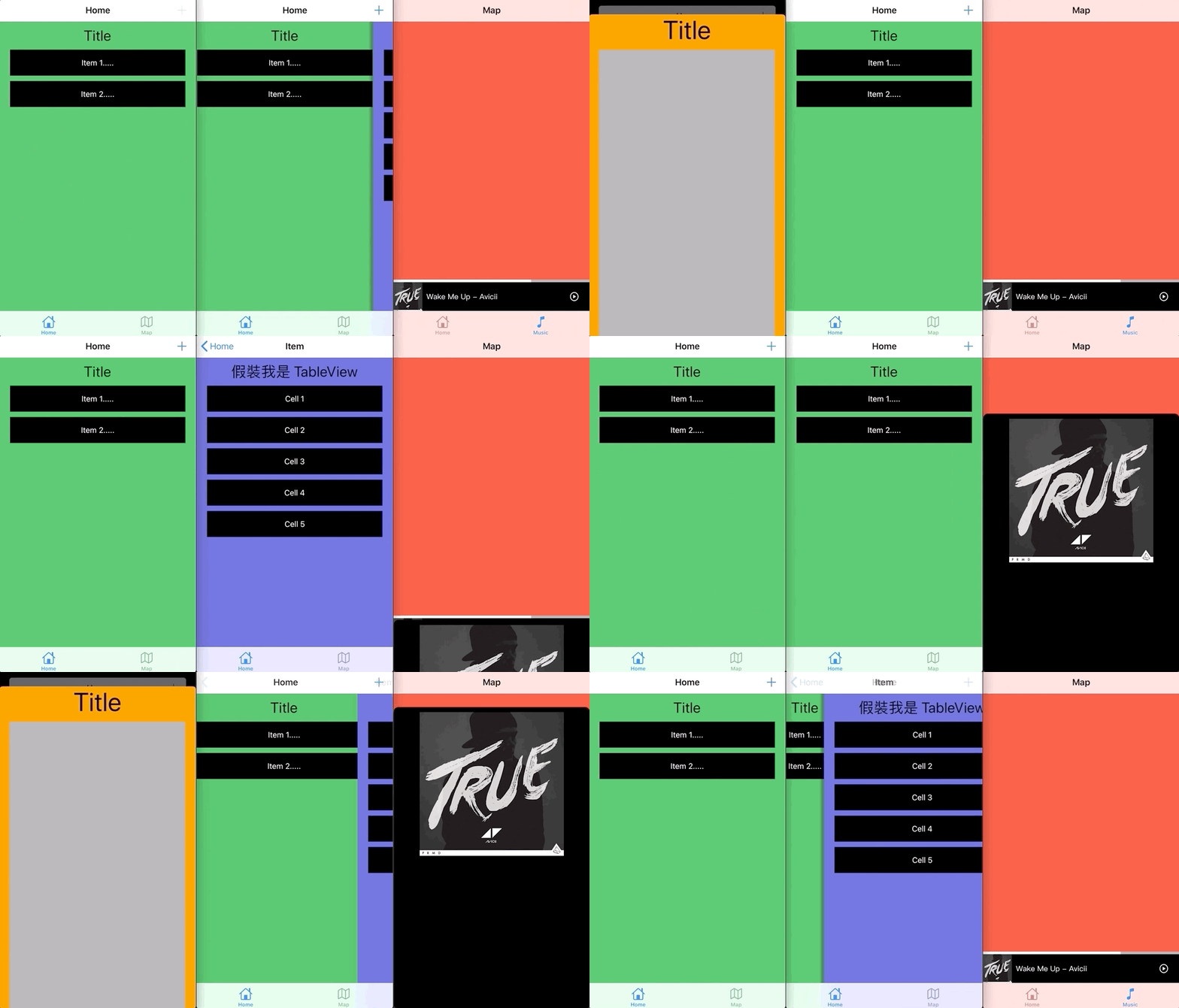
完成図
この記事は非常に長く、作成にかなりの時間をかけました。ご辛抱いただき、ありがとうございます。
全篇 GitHub サンプルダウンロード:
参考資料:
-
UIPresentationControllerを使ってシンプルで美しい下部ポップアップコンポーネントを作る(単純にPresentのアニメーション効果だけならこれを使えばOK)
優雅なコードのパッケージングを参考にしたい場合:
Post は Medium から ZMediumToMarkdown により変換されました。


コメント